KNOTLINE / REVENUECAT GUIDE
Create a RevenueCat
Secret API key.
Give Knotline read-only access to the charts and project information it needs—nothing more.
This guide never asks you to paste a key into the website. Knotline sends it directly from your device to RevenueCat for verification and stores it in iOS Keychain only after you confirm the project.
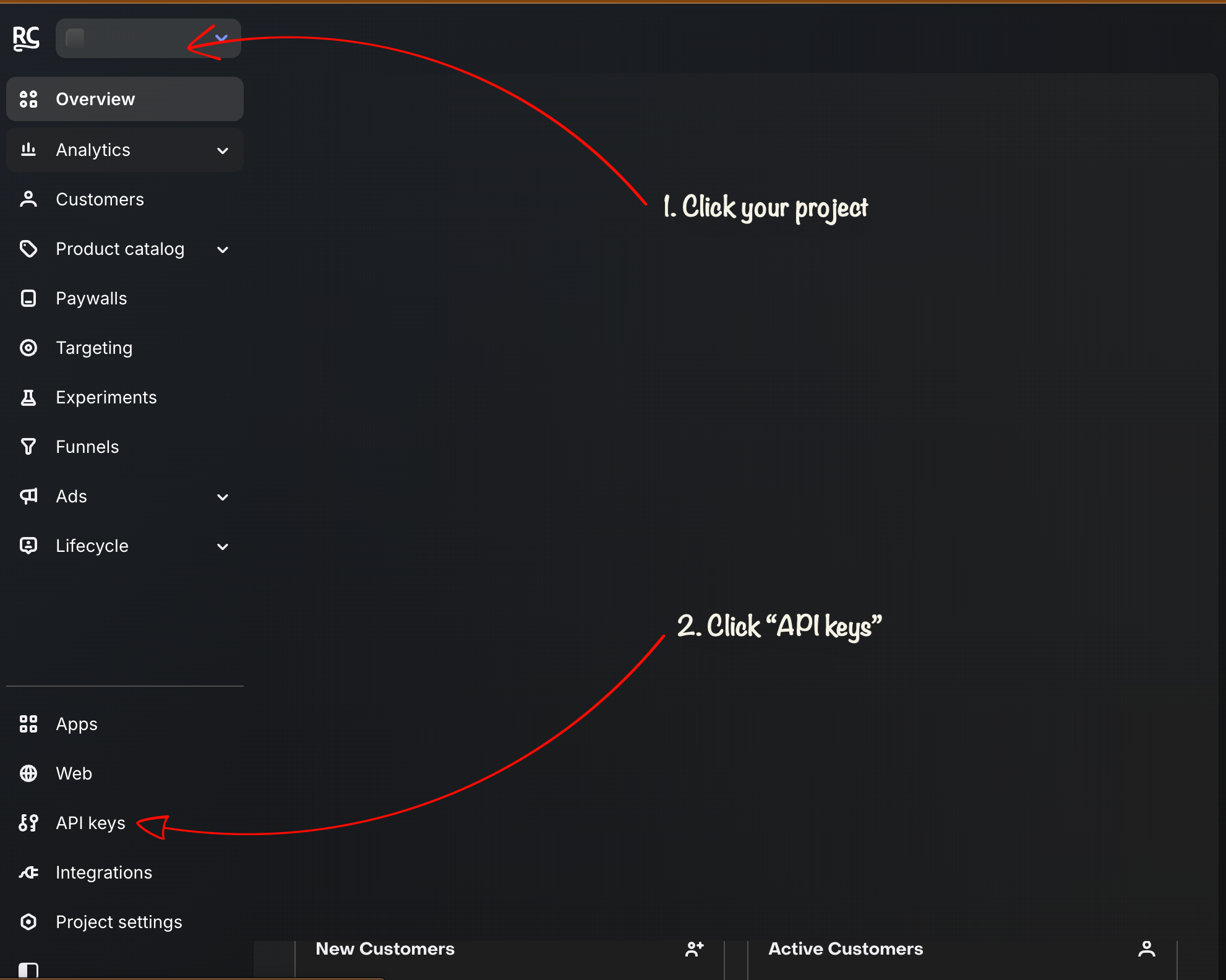
Open API keys
Sign in to RevenueCat, choose the project you want to connect from the project menu, then select API keys near the bottom of the sidebar.
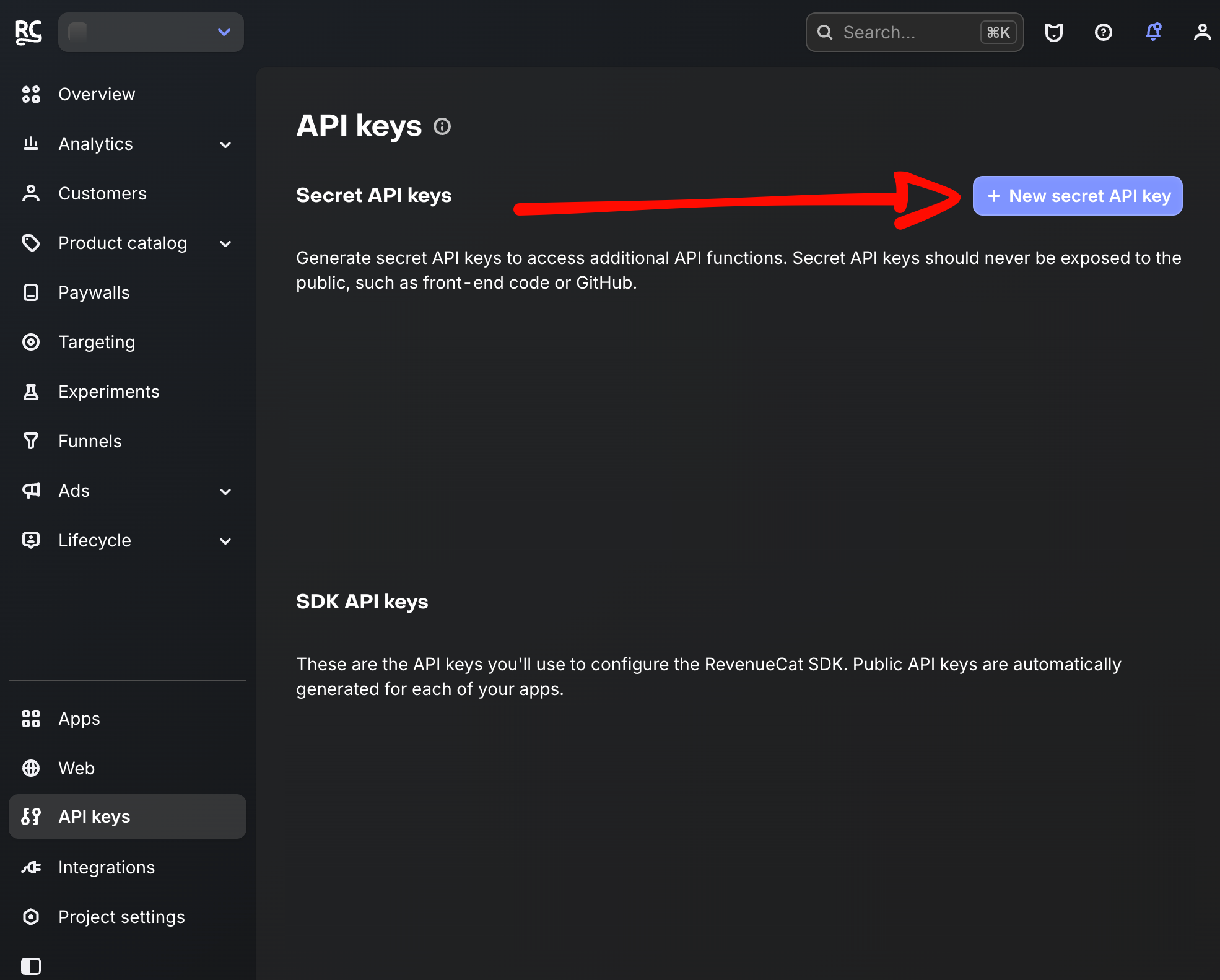
Create a Secret API key
Under Secret API keys, select New secret API key. Do not use an SDK API key—SDK keys cannot read the project facts Knotline needs.
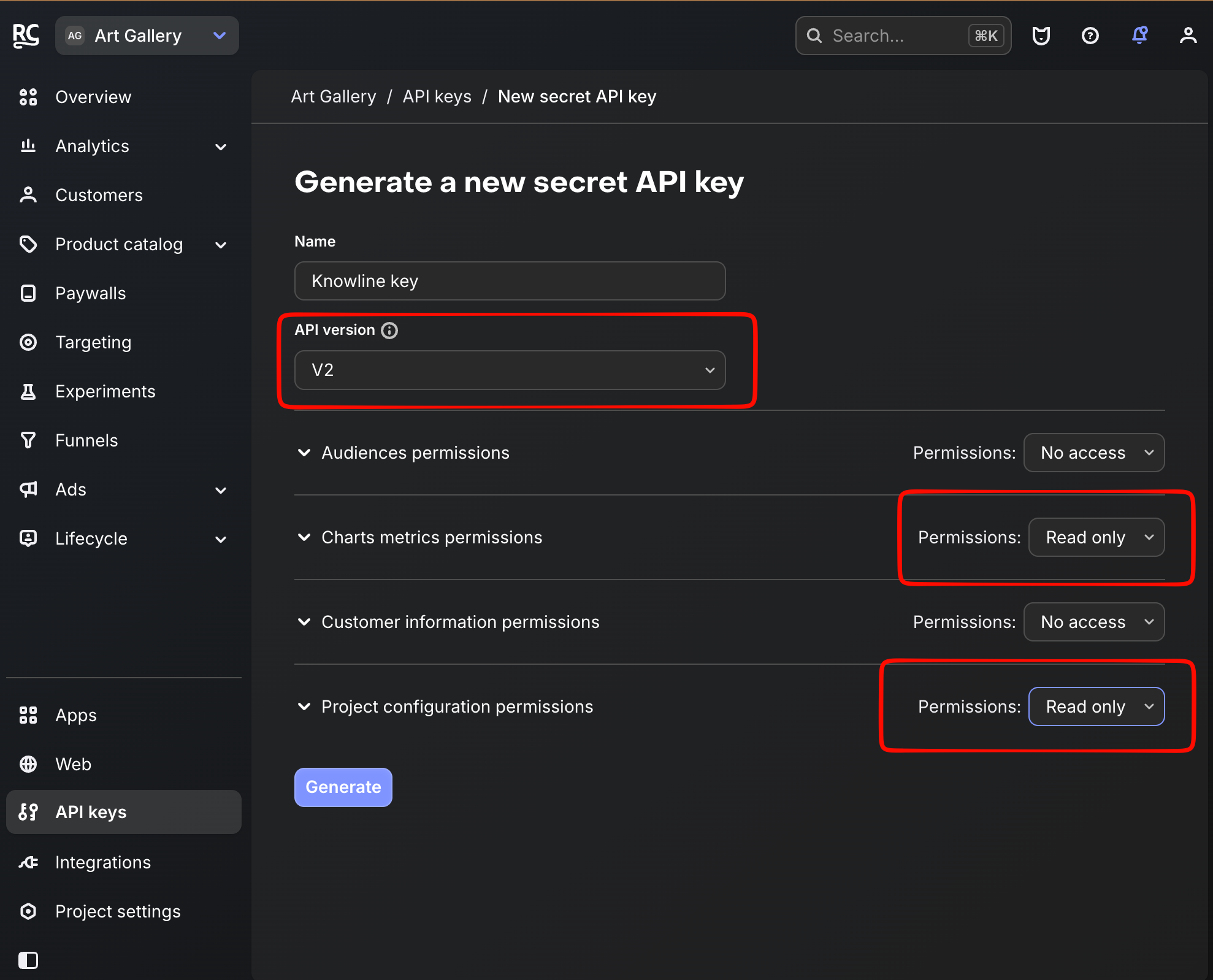
Choose V2 and read-only access
Give the key a recognizable name such as Knotline. Choose V2, set Charts metrics and Project configuration to Read only, and leave every other permission at No access. Then select Generate.
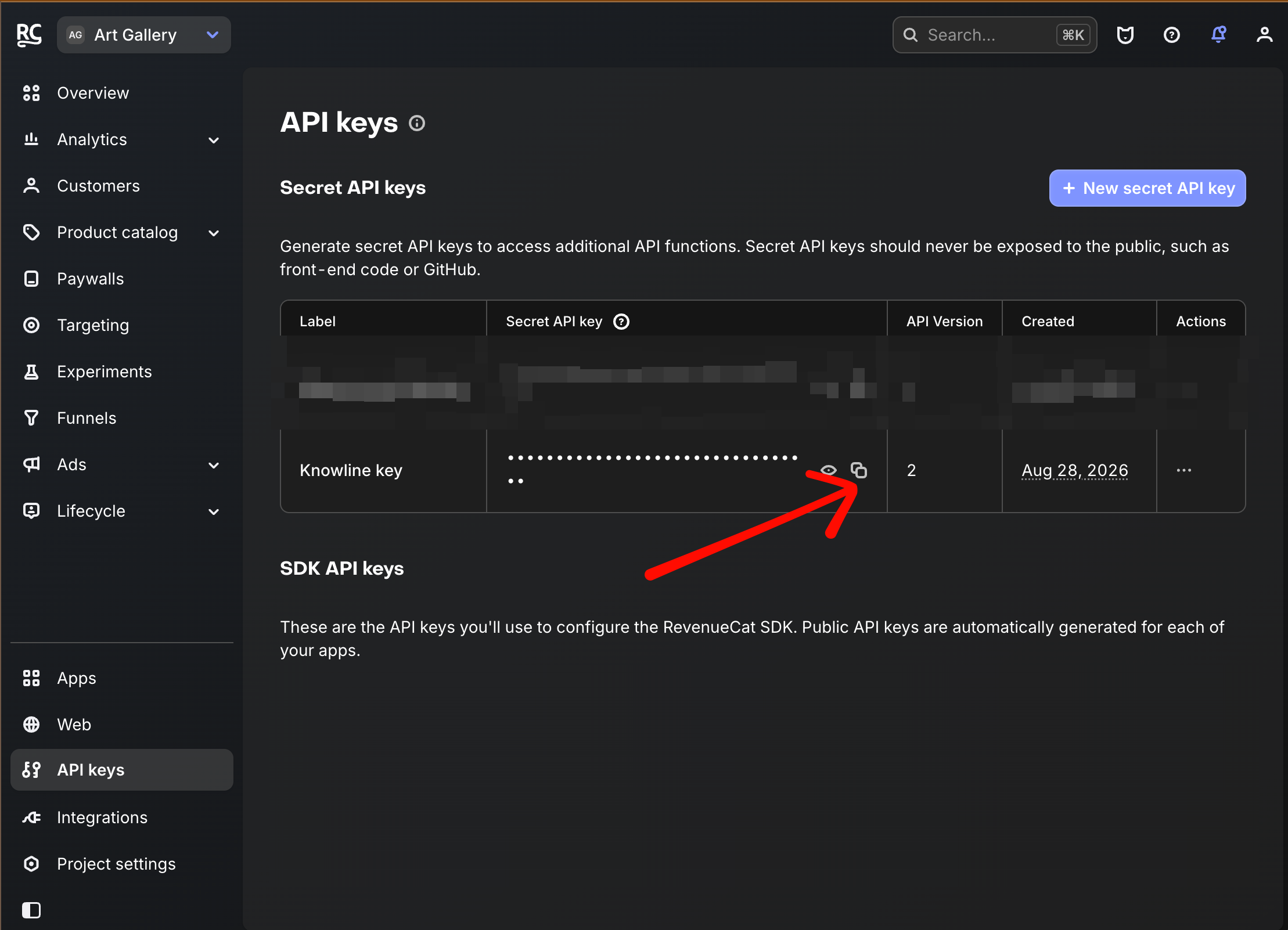
Copy it into Knotline
After generation, return to the API keys list. Use the copy button beside the Secret API key, return to the unfinished Knotline connection flow, and paste it into the Secret API key field. You can come back to this list to reveal or copy the key again later.